Using the SEEED_GFX2 example for Hello using SEEED Driver Board (SKU 114993558) with XIAO_ESP32S3 and SEEED 4.26 BW ePaper display, compiles without error but nothing on Display. NOTE: was able to use SEEED_GFX successfully with same setup!
Here is the CODE:
#include <Seeed_GFX.h>
#include “board/boards/XIAO_ePaper_Boards.h”
#include “panel/configs/Seeed_Panel_Configs.h”
#include “driver/epaper/Driver_SSD1677.h”
#include “panel/Panel_EPaper.h”
Seeed_GFX display;
void setup() {
Serial.begin(115200);
if (!display.begin<Board_XIAO_ePaper_Breakout, Config_Seeed_ePaper_4inch26_BW_SSD1677>()) { Serial.println(display.lastResult().message); return; }
display.fillScreen(TFT_WHITE);

const int16_t w = display.width();   // 800
const int16_t h = display.height();  // 480

// Top banner
display.fillRect(0, 0, w, 86, TFT_BLACK);
display.setTextColor(TFT_BLACK);  //was WHITE
display.setTextSize(3);
display.drawString("XIAO ePaper Breakout Board", 48, 28);

// Product info
display.setTextColor(TFT_BLACK);
display.setTextSize(2);
display.drawString("4.26 inch monochrome ePaper", 60, 125);
display.setTextSize(1);
display.drawString("800 x 480  |  SSD1677  |  1 bpp", 96, 170);

// Rounded rectangle frame
display.drawRoundRect(48, 210, 704, 170, 12, TFT_BLACK);

// Hello World in the center
display.setTextSize(5);
display.drawString("Hello World", 180, 260);

// Bottom bar
display.fillRect(0, h - 40, w, 40, TFT_BLACK);
display.setTextColor(TFT_WHITE);
display.setTextSize(1);
display.drawString("Seeed Studio  |  seeedstudio.com", 48, h - 30);

display.update();
}
void loop() { delay(1000); }
After searching GitHub SEEED-GFX2, for what ePaper boards are allowed in:
if (!display.begin<Board_XIAO_ePaper_Breakout, Config_Seeed_ePaper_4inch26_BW_SSD1677>()) { Serial.println(display.lastResult().message); return; }
I discovered src/board/configs/XIAO_ePaper_Board_Configs.h
struct Config_XIAO_ePaper_Driver_Board : XIAO_ePaper_CommonConfig {
static const char* name() { return “XIAO ePaper Driver Board”; }
static BoardPinConfig pins() { return driverPins(D2); }
};
I tried to match the Board Name with the breakout board and came up with:
if (!display.begin<Board_XIAO_ePaper_Driver, Config_Seeed_ePaper_4inch26_BW_SSD1677>()) { Serial.println(display.lastResult().message); return; }
Now the display works!
One slight issue is the the BLACK and WHITE are reversed! If Text color is WHITE it prints BLACK, same with all color references.!! Any thoughts?
Hi there,
So, If your rendered graphics or text are inverted (e.g., black text rendering on a solid black block or white backgrounds appearing inverted), you can easily handle it using these approaches:
-
Invert Command Insertion: You can call the built-in display inversion command method directly after initialization (e.g., display.invertDisplay(true);) if supported by your specific panel configuration class.
-
Palette Swapping: Manually flip your color logic in the drawing code—swap TFT_BLACK for TFT_WHITE and vice versa in your fillScreen(), fillRect(), and setTextColor() calls.
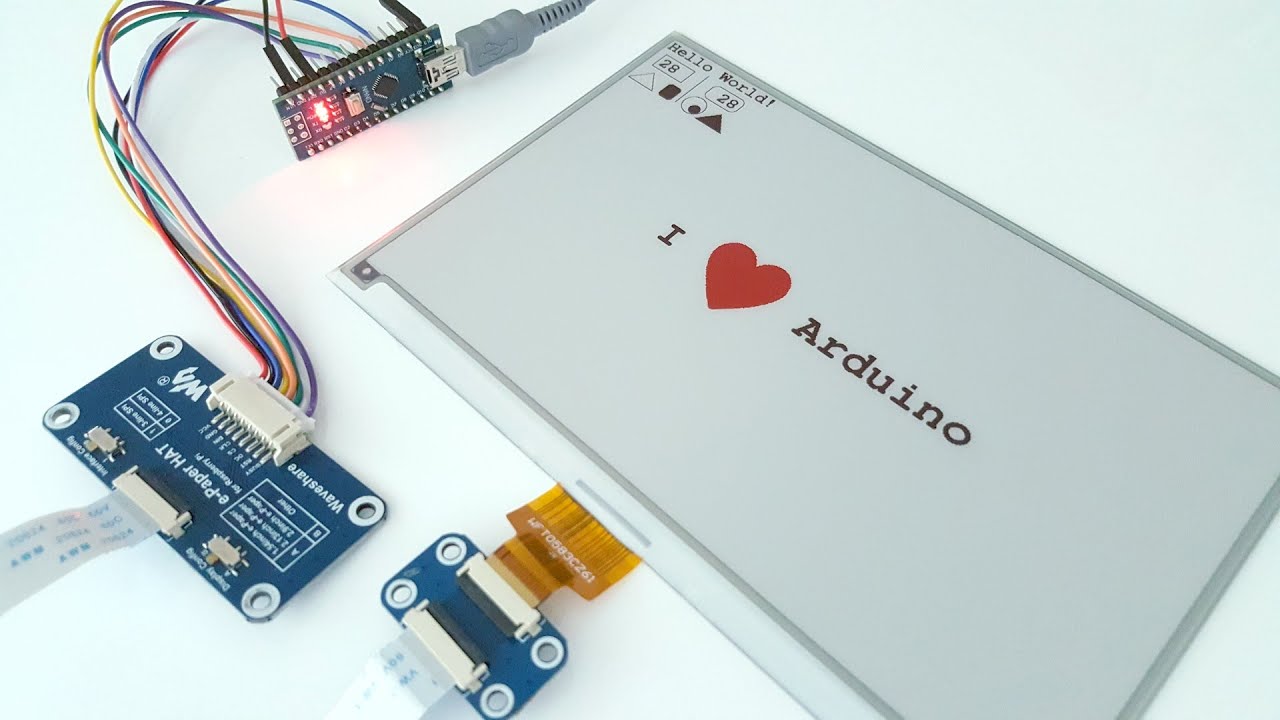
The video below demonstrates working with e-paper display graphics and handling buffer setups in Arduino projects.
HTH
GL  PJ

FYI, If you mark your own as a solution , You’ll want to be sure, because updates to info(complete-SOLUTION) will NOT show up as NEW, so other user won’t benefit from new answers. Be aware.
Thank you for your response. I was just glad something appeared on the display and then later realized the inversion issue. I am going to start another Topic regarding using an XIAO_ESP32C6 instead of XIAO_ESP32S3. Thank you again!