Hello,
I need some help with the XIAO ESP32S3 (sense) and Round Display. I have my UI files ready in EEZ Studio, but I can’t get them to run correctly with the display drivers. I have followed the ePaper wiki template and even used AI to help with the code, but nothing seems to work. Does anyone have a working example or basic ‘bridge’ code for EEZ Studio and this round screen?
Thanks a lot! 
PJ should be able to help you… the code base was very old along time ago
Hi there,
And Welcome here.
So the Round display is a Great piece of tech, a little complex , but works very well and worth the learning curve.
so then which XIAO? are you using, Arduino IDE ?
Forget the AI stuff for NOW, use it latter after you get it working, It’s a Tool not a Solution.
If Arduino , easy. Run the Read_User_Setup.ino Compile , Run and Report back what you get, Serial port output will show you what is set.
(the WiKi for the round display is worth a look to gain further understanding of what’s needed in way of edits for the User_setup file.  )
)

most likely it’s mis configured or the BSP for the MCU is wrong 
either way , you’ll get it going stay at it.
report back.
HTH
GL  PJ
PJ 
you may want to write an excelent solution report on this item… the code issues and whatnot for getting the round display working correctly IMO
So, I’m using:
XIAO ESP32S3(Sense version, but I’m using it without the camera, microphone, or SD card expansion board)
Software:
Arduino IDE2.3.8 (latest).EEZ Studio0.26.2 (I think that’s also the latest one)
Libraries:
-
Seeed_GFX(downloaded from GitHub) -
Seeed_Arduino_RoundDisplay(downloaded from GitHub) -
LVGLversion 9.5.0 (installed via Arduino IDE).
The Pong_v3 example works perfectly with these three libraries  .
.
Here is my Read_User_Setup output:
[code]
TFT_eSPI ver = 2.5.43
Processor    = ESP32
Frequency    = 240MHz
Transactions = Yes
Interface    = SPI
Display driver = 9341
Display width  = 240
Display height = 320

MOSI    = GPIO 9
MISO    = GPIO 8
SCK     = GPIO 7
TFT_CS   = GPIO 2
TFT_DC   = GPIO 4
TFT_RST  = GPIO 1

Font GLCD   loaded
Font 2      loaded
Font 4      loaded
Font 6      loaded
Font 7      loaded
Font 8N     loaded
Smooth font enabled

Display SPI frequency = 50.00
[/code]
My main problem is that I couldn’t find (or generate) any code that works with the EEZ Studio and the round display.
Hi there,
OK, Nice reply..
So which BSP are you using the (older ones work with EZ) the new one not so much.
Your using an S3 so I would try to roll back (in boards tab) to an Older BSP.
I thought I had a demo on here with code for EZ or maybe it’s the other UI builder
? I’ll go check my Archive. Standby..
I wanted one with just the Display on it, Seeed Needs a Round display with , SPI or I2c only , IMO. it’s all the other stuff that makes it unique yes but more complex to use for just display. But I do like it’s Picture.
If I recall , there was a little tweak needed to make it run… got to be 1 year ago I think.
HTH
GL PJ
I’m using the
esp32Board package v3.3.7
I’m downgrading it to v2.0.8.
Or is the BSP something different ?
Hi there,
Yes, try one of the older one’s after the S3 came out. I’m still looking for the demo.
Where is the pong code posted or post what you have I can try to compile and run it, time permitting. Use the code tags above “</>” paste it in there
GL PJ
Try BSP 3.1.1 was a very stable and worked well.
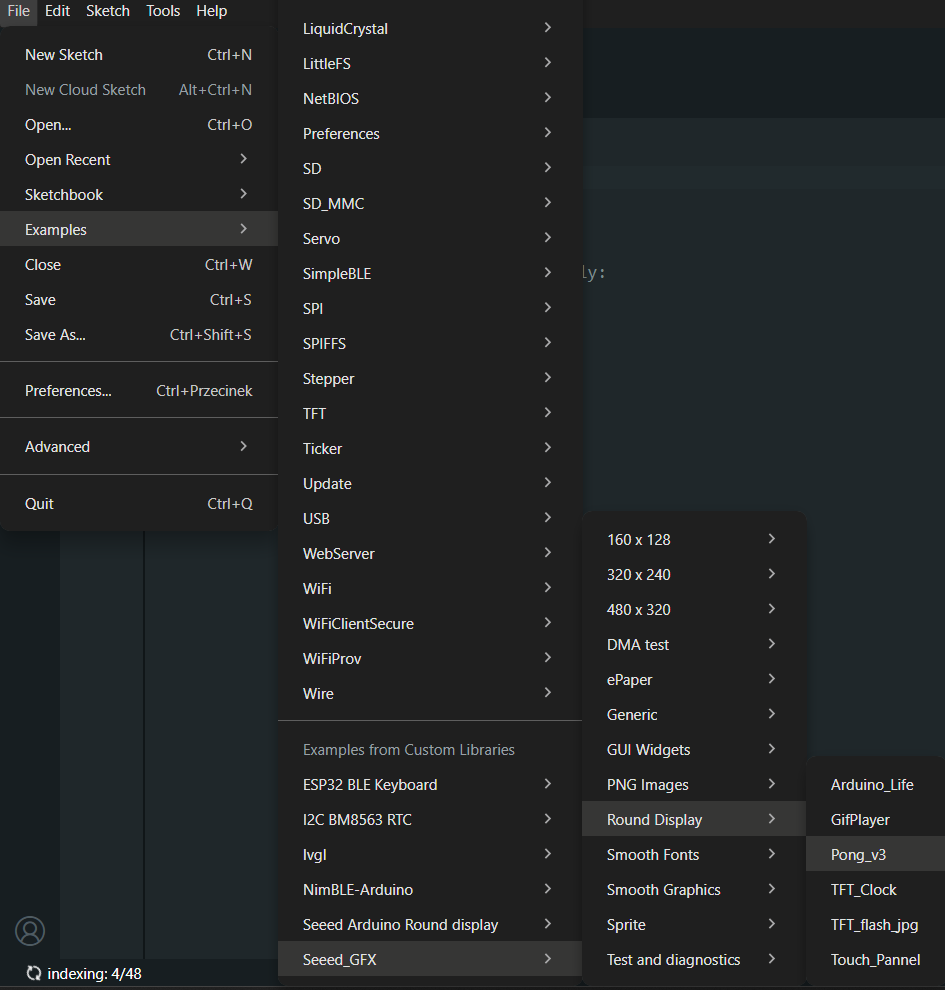
There is the Pong_v3
and the code as follows:
Pong_v3.ino
/*

 * Pong

 * Original Code from


 *

 */


#define BLACK 0x0000

#define WHITE 0xFFFF

#define GREY  0x5AEB


#include <TFT_eSPI.h> // Graphics and font library for ST7735 driver chip

#include <SPI.h>


TFT_eSPI tft = TFT_eSPI();  // Invoke library, pins defined in User_Setup.h


int16_t h = 240;

int16_t w = 240;


int dly = 10;


int16_t paddle_h = 25;

int16_t paddle_w = 2;


int16_t lpaddle_x = 0;

int16_t rpaddle_x = w - paddle_w;


int16_t lpaddle_y = 0;

int16_t rpaddle_y = h - paddle_h;


int16_t lpaddle_d = 1;

int16_t rpaddle_d = -1;


int16_t lpaddle_ball_t = w - w / 4;

int16_t rpaddle_ball_t = w / 4;


int16_t target_y = 0;


int16_t ball_x = 2;

int16_t ball_y = 2;

int16_t oldball_x = 2;

int16_t oldball_y = 2;


int16_t ball_dx = 1;

int16_t ball_dy = 1;


int16_t ball_w = 4;

int16_t ball_h = 4;


int16_t dashline_h = 4;

int16_t dashline_w = 2;

int16_t dashline_n = h / dashline_h;

int16_t dashline_x = w / 2 - 1;

int16_t dashline_y = dashline_h / 2;


int16_t lscore = 12;

int16_t rscore = 4;


void setup(void) {


  randomSeed(analogRead(0)*analogRead(1));


  tft.init();


  tft.setRotation(1);


  tft.fillScreen(BLACK);


  initgame();


  tft.setTextColor(WHITE, BLACK);


  delay(2000);


}


void loop() {

  delay(dly);


  lpaddle();

  rpaddle();


  midline();


  ball();

}


void initgame() {

  lpaddle_y = random(0, h - paddle_h);

  rpaddle_y = random(0, h - paddle_h);


  // ball is placed on the center of the left paddle

  ball_y = lpaddle_y + (paddle_h / 2);


  calc_target_y();


  midline();


  tft.fillRect(0,h-26,w,h-1,BLACK);


  tft.setTextDatum(TC_DATUM);

  tft.setTextColor(WHITE);

  tft.drawString("TFT_eSPI example", w/2, h-26 , 2);

}


void midline() {


  // If the ball is not on the line then don't redraw the line

  if ((ball_x<dashline_x-ball_w) && (ball_x > dashline_x+dashline_w)) return;


  tft.startWrite();


  // Quick way to draw a dashed line

  tft.setAddrWindow(dashline_x, 0, dashline_w, h);


  for(int16_t i = 0; i < dashline_n; i+=2) {

    tft.pushColor(WHITE, dashline_w*dashline_h); // push dash pixels

    tft.pushColor(BLACK, dashline_w*dashline_h); // push gap pixels

  }


  tft.endWrite();

}


void lpaddle() {


  if (lpaddle_d == 1) {

    tft.fillRect(lpaddle_x, lpaddle_y, paddle_w, 1, BLACK);

  }

  else if (lpaddle_d == -1) {

    tft.fillRect(lpaddle_x, lpaddle_y + paddle_h - 1, paddle_w, 1, BLACK);

  }


  lpaddle_y = lpaddle_y + lpaddle_d;


  if (ball_dx == 1) lpaddle_d = 0;

  else {

    if (lpaddle_y + paddle_h / 2 == target_y) lpaddle_d = 0;

    else if (lpaddle_y + paddle_h / 2 > target_y) lpaddle_d = -1;

    else lpaddle_d = 1;

  }


  if (lpaddle_y + paddle_h >= h && lpaddle_d == 1) lpaddle_d = 0;

  else if (lpaddle_y <= 0 && lpaddle_d == -1) lpaddle_d = 0;


  tft.fillRect(lpaddle_x, lpaddle_y, paddle_w, paddle_h, WHITE);

}


void rpaddle() {


  if (rpaddle_d == 1) {

    tft.fillRect(rpaddle_x, rpaddle_y, paddle_w, 1, BLACK);

  }

  else if (rpaddle_d == -1) {

    tft.fillRect(rpaddle_x, rpaddle_y + paddle_h - 1, paddle_w, 1, BLACK);

  }


  rpaddle_y = rpaddle_y + rpaddle_d;


  if (ball_dx == -1) rpaddle_d = 0;

  else {

    if (rpaddle_y + paddle_h / 2 == target_y) rpaddle_d = 0;

    else if (rpaddle_y + paddle_h / 2 > target_y) rpaddle_d = -1;

    else rpaddle_d = 1;

  }


  if (rpaddle_y + paddle_h >= h && rpaddle_d == 1) rpaddle_d = 0;

  else if (rpaddle_y <= 0 && rpaddle_d == -1) rpaddle_d = 0;


  tft.fillRect(rpaddle_x, rpaddle_y, paddle_w, paddle_h, WHITE);

}


void calc_target_y() {

  int16_t target_x;

  int16_t reflections;

  int16_t y;


  if (ball_dx == 1) {

    target_x = w - ball_w;

  }

  else {

    target_x = -1 * (w - ball_w);

  }


  y = abs(target_x * (ball_dy / ball_dx) + ball_y);


  reflections = floor(y / h);


  if (reflections % 2 == 0) {

    target_y = y % h;

  }

  else {

    target_y = h - (y % h);

  }

}


void ball() {

  ball_x = ball_x + ball_dx;

  ball_y = ball_y + ball_dy;


  if (ball_dx == -1 && ball_x == paddle_w && ball_y + ball_h >= lpaddle_y && ball_y <= lpaddle_y + paddle_h) {

    ball_dx = ball_dx * -1;

    dly = random(5); // change speed of ball after paddle contact

    calc_target_y();

  } else if (ball_dx == 1 && ball_x + ball_w == w - paddle_w && ball_y + ball_h >= rpaddle_y && ball_y <= rpaddle_y + paddle_h) {

    ball_dx = ball_dx * -1;

    dly = random(5); // change speed of ball after paddle contact

    calc_target_y();

  } else if ((ball_dx == 1 && ball_x >= w) || (ball_dx == -1 && ball_x + ball_w < 0)) {

    dly = 5;

  }


  if (ball_y > h - ball_w || ball_y < 0) {

    ball_dy = ball_dy * -1;

    ball_y += ball_dy; // Keep in bounds

  }


  //tft.fillRect(oldball_x, oldball_y, ball_w, ball_h, BLACK);

  tft.drawRect(oldball_x, oldball_y, ball_w, ball_h, BLACK); // Less TFT refresh aliasing than line above for large balls

  tft.fillRect(   ball_x,    ball_y, ball_w, ball_h, WHITE);

  oldball_x = ball_x;

  oldball_y = ball_y;

}
driver.h
#define BOARD_SCREEN_COMBO 501 // Round Display for Seeed Studio XIAO (GC9A01)
And everything compressed (from examples) .ino + .h:
Pong_v3.zip (2,0 KB)
Hi there,
LOL, I’m blind , Thanks I’ll run through it,
Meanwhile Check this video, if you haven’t seen it. May shed a little more light.

LUNCH..
GL PJ
Quite straightforward actually…
-
Place the EEZ Studio ui files into the project (Arduino) folder.
-
Include the “ui.h” file, as well as “screens.h” and “actions.h”.
-
Fix the lvgl.h path in the header files.
-
Add a ui_init(); to the setup function.
-
Create any actions from EEZ Studio (see actions.h for function prototypes).
And that’s it…
NB: I prefer use latest EEZ Studio with LVGL V9.5 and TFT_eSPI. I also use the latest Arduino BSPs. That allows me to use devices other than the just the XIAOs (ESP32-S3). I also stick to PlatformIO for this type of development.
I am working with the XIAO ESP32S3 (optionally XIAO ESP32C3) together with the Round Display for XIAO. Using PlatformIO and EEZ‑Studio, I would like to create a simple GUI consisting of a button and a label. Therefore, I am looking for a minimal working template project that demonstrates basic GUI functionality (button + label).
I’m currently travelling for work, but can create a sample when I get back to the office…
I think some the the regular “experts” have code that you could use…
I’d really appreciate it if you could do that when you’re back.